How to convert a scanned PDF to Word without the cleanup
A scanned PDF has no words in it, only a picture of them. Getting it into Word is two jobs: reading the page and rebuilding it. Most tools only do the first, and leave the second to you.
If you have ever converted a scan and then spent an hour fixing the result, the conversion was not the slow part. The rebuilding was. This piece covers why scans are harder than ordinary PDFs, where traditional OCR leaves you with work, and a workflow that turns an hour of formatting into a few minutes of reading.
Why is a scanned PDF different?
A PDF exported from Word or an accounting package stores real text. A scanned PDF, or a phone photo saved as one, stores an image of each page. Try to select a single word: if the whole page highlights, or nothing does, it is a scan.
That means nothing in the file says where a paragraph ends, which lines form a table, or that the small print at the top repeats on every page. Every one of those things has to be worked out again from the picture before Word can use them.
Where traditional OCR leaves you with work
OCR (optical character recognition) has been around for decades, and on clean body text it reads characters very well. The trouble is that it reads characters, not documents. It records what each line says and where it sat, and then tries to reproduce the page from those positions.
On a real scan, that leaves a familiar set of repairs:
- A hard line break at the end of every printed line, so paragraphs will not reflow when you edit them.
- Words split by a hyphen at the end of a line, left split in the middle of your sentence.
- Tables turned into spaced-out text, or a grid of floating boxes that fall apart when you add a row.
- Two columns read straight across, as if they were one line.
- Quiet misreads: a 1 read as a 7, a digit missing from a phone number. These look exactly like correct text, so you only find them by checking every line.
None of these is hard to fix on its own. Together, on every page, they are the afternoon.
The usual workflow: import, convert, format
With most converters the job has three steps. You import the PDF, you convert it, and then you format: joining broken lines, deleting text boxes, rebuilding tables cell by cell, restoring headings and retyping what was misread. The conversion takes seconds. The formatting takes the time, and it grows with every table and column on the page.
Ours: import, convert, review
We built our converter to remove the third step. You import the PDF, convert it, and review the result. It reads the page the way a person does, as headings, paragraphs, lists and tables, and writes that structure into Word. Paragraphs reflow, tables are real Word tables, and there is no layout left to rebuild.
Reviewing is a different job from rebuilding. You read the document against the original, fix the occasional word, and send it. The hour that went into formatting goes back into the work you actually needed the document for, and across a folder of scans that is the difference between a day and a morning.
What about forms and tables?
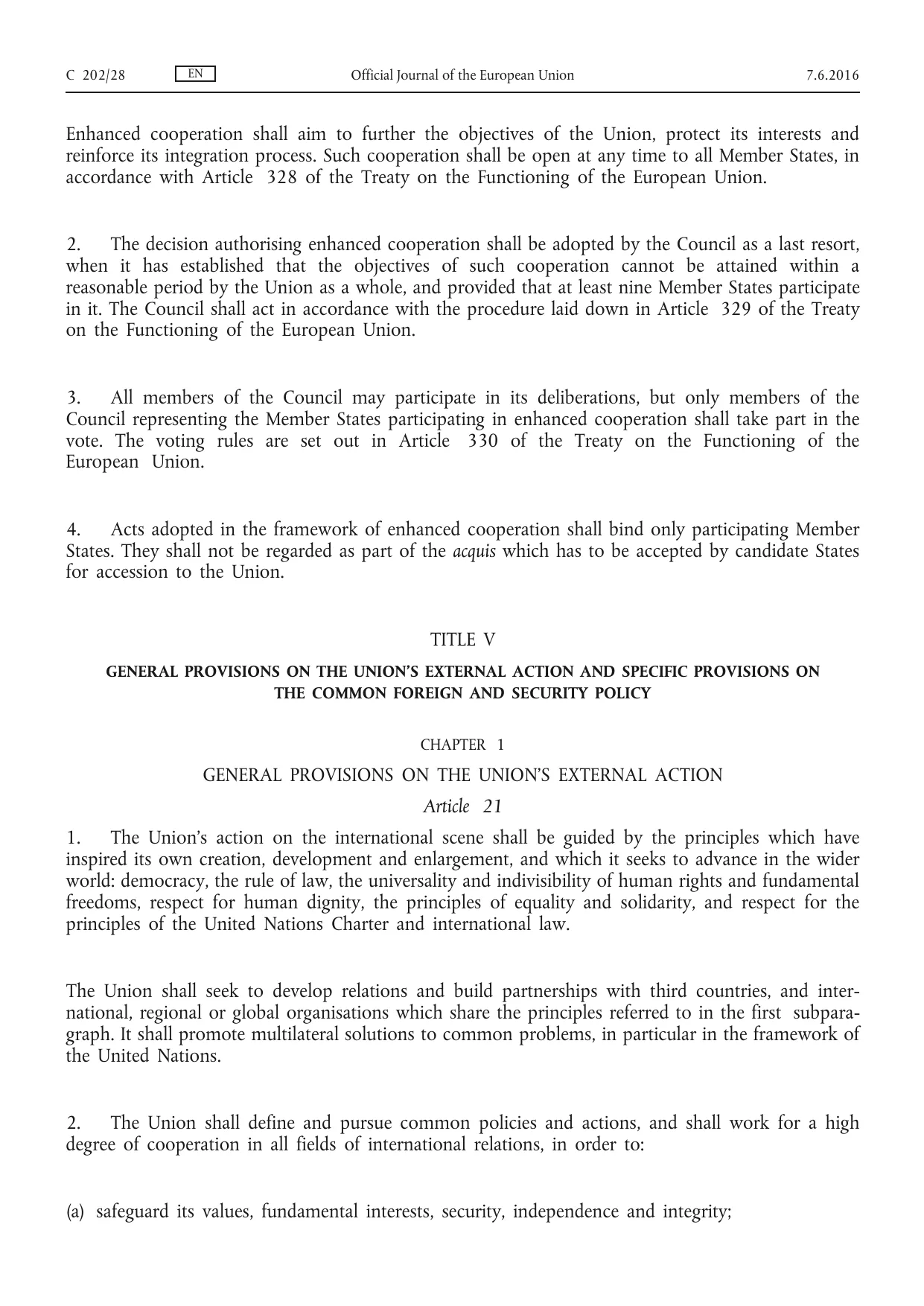
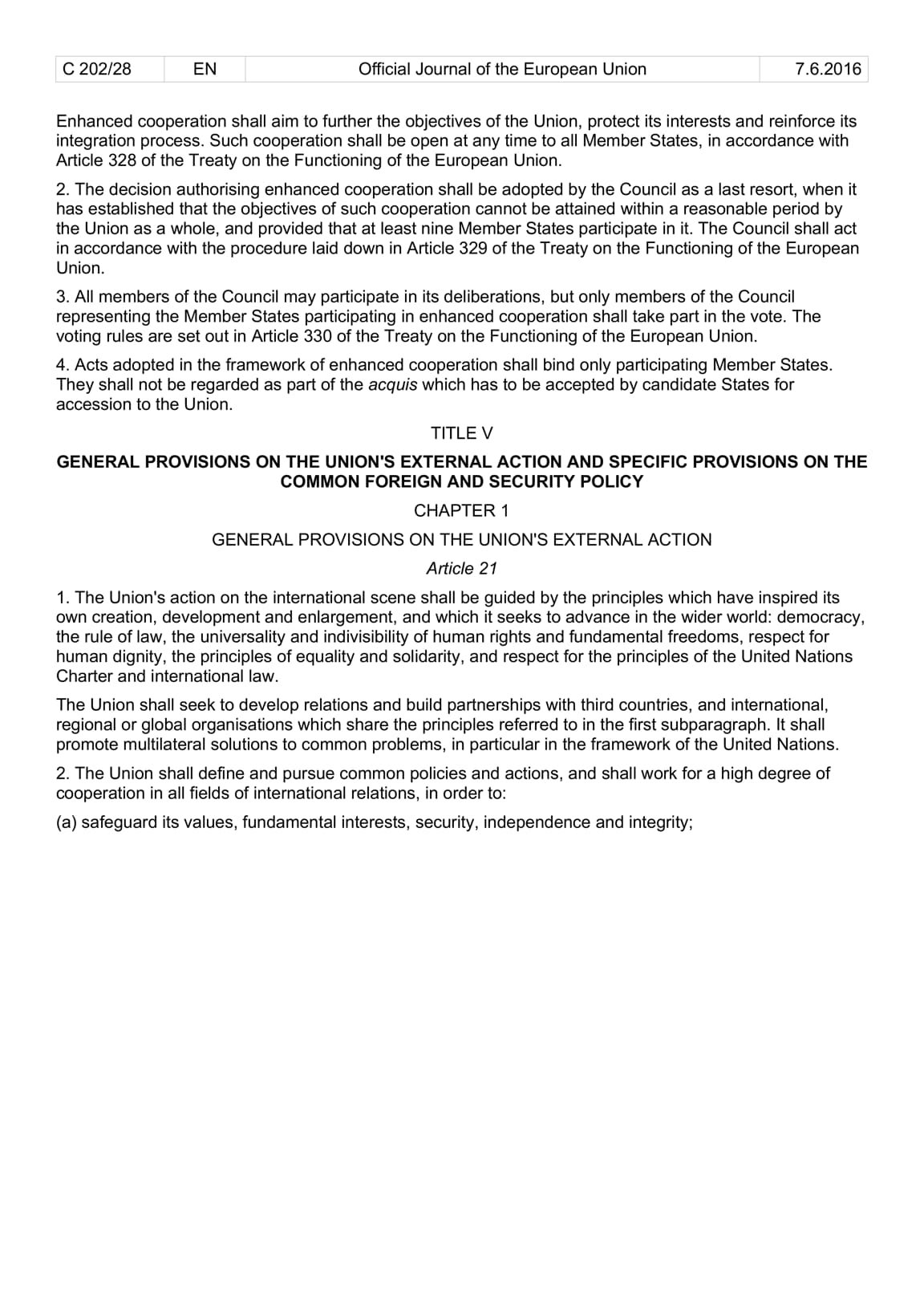
Tables are where most conversions fail, because a printed table has no cells in the file, only lines and white space. Forms are harder still: labels, filled-in answers, checkboxes and dotted lines all have to land in the right cell.
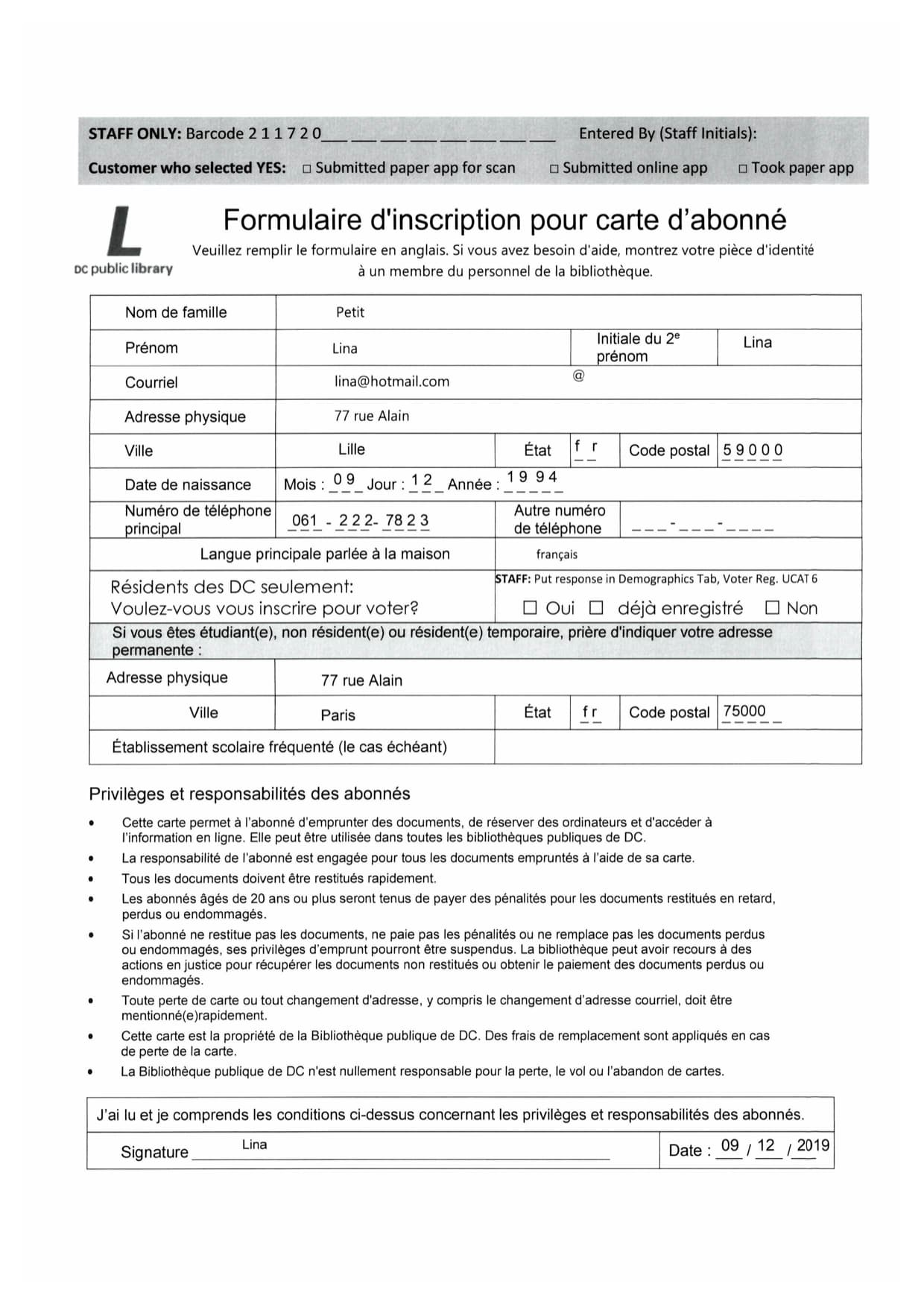
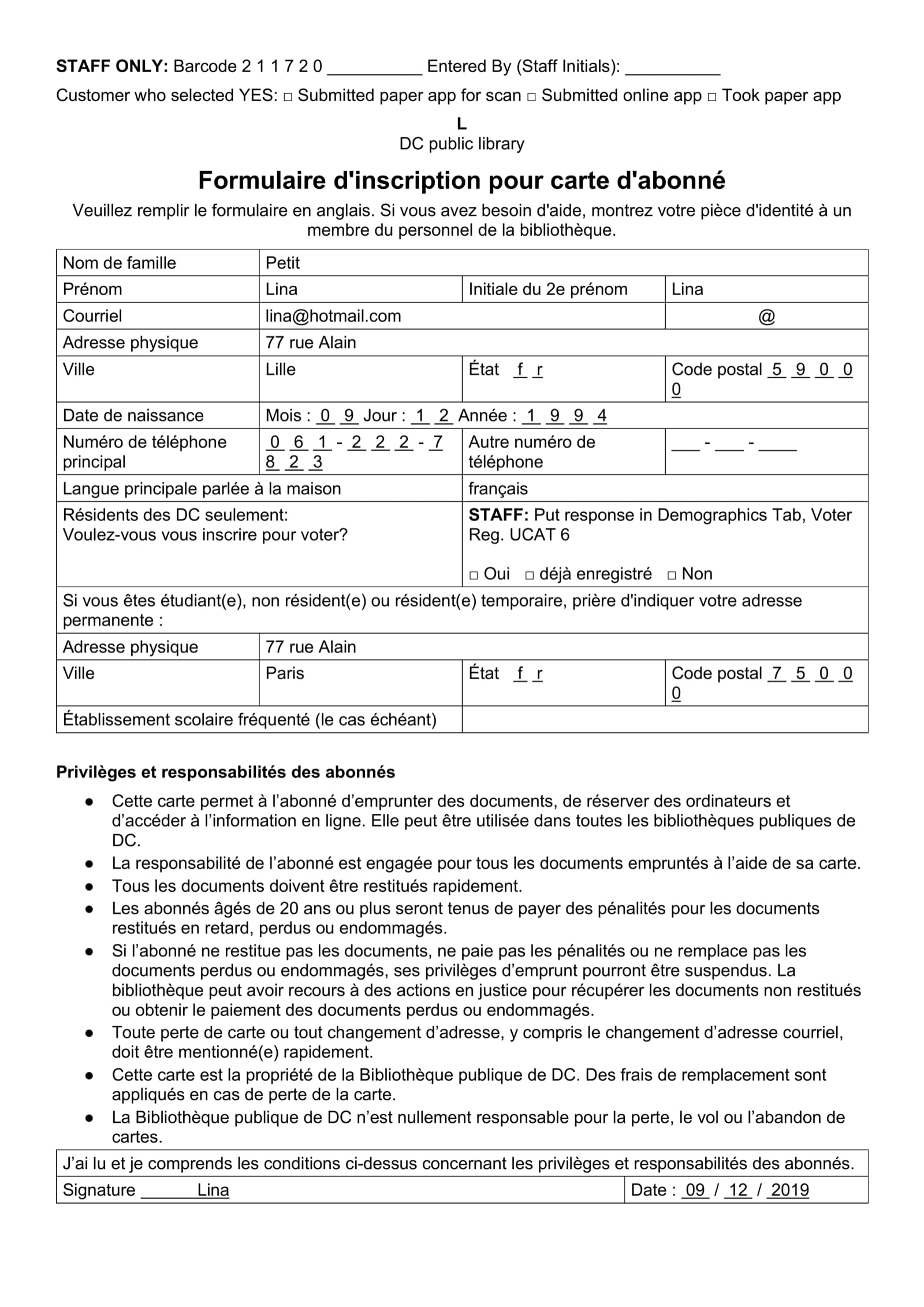
The same page through three other tools is in our comparison of why PDF to Word conversions break, if you want to see what the alternative looks like.
How do you check a conversion quickly?
Whatever tool you use, four checks take about two minutes and tell you whether you are about to review a document or rebuild one:
- Type a sentence into the middle of a paragraph. The text after it should move down, not overlap.
- Click into the widest table and press Tab. The cursor should move to the next cell.
- Read the first line of a two-column page. It should finish the left column before starting the right.
- Check one full row of figures against the scan. Misread digits hide in tables, not in prose.
A file that passes is one you can review. A file that fails any of them is one you will be formatting.
When you do not need a converter
If the PDF was exported from Word in the first place and you only need the text, Word can open it directly and will get you most of the way. The case for a converter is scans and photos, pages with tables or columns, and documents someone will edit or translate rather than just read.
Try it on one page
You can convert a single page to Word free, with no account and no card. Drop the scan that usually costs you the most time into the box below, then run the four checks above on what comes back. The same box sits on the PDF to Word page, and every example on the samples page is real output, if you want to see a document like yours first.
You can only convert 1 page without an account
Try it on your own document
30 free tokens when you sign up, no card needed.